Using the Tools Menu
The Tools menu appears whenever you edit a data value on the History Grid, thereby shifting into Edit Mode. If multiple grids are open simultaneously, only one can utilize Edit mode.
Note: Editing can only be performed from one History grid at a time, although multiple History grid controls can be open simultaneously. While performing edits in one History grid control, a lock icon  will appear in the status bar of each additional instance of a History grid control to indicate that it is currently read-only. Absence of the read-only icon indicates that the History grid control you are viewing is currently editable.
In Edit mode you have the option to Save or Cancel edits from the Tools menu. You can also save or cancel edits from the control toolbar above the data grid. See Menus and Toolbars for more information.
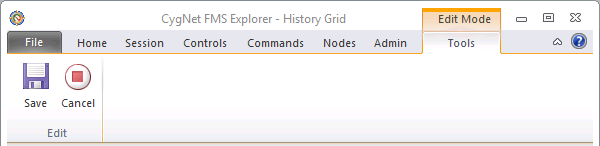
To Save an Edited Value Using the Tools Menu
- Edit the desired value.
- Click Save to write the new value. The Save Changes dialog box appears.
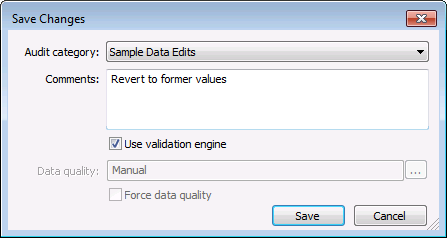
- Select an Audit category from the drop-down menu. For auditing purposes, this type of edit is Data Change. Audit categories are configured on the Admin page. See Auditing in CygNet Measurement for more information.
- Optionally, type a Comment into the text box to explain the change. The comment becomes part of the audit record, and can be helpful in auditing circumstances to identify the context for the change.
- If configured to do so, you may be presented with a Use validation engine check box. If so, select/clear the check box to use/not use the validation engine for the current edit. See System Options for more information about using this data change setting.
- When enabled, click ... to access the Select Data Quality dialog box.
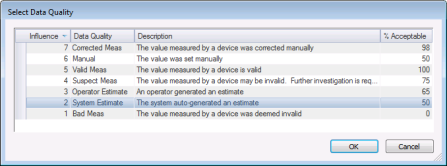
Configured data quality settings are listed, including the influence, name, description, and % acceptable for each choice. Select an appropriate data quality for the current data change, and then click OK.
See Configuring Data Quality Settings for more information about system data quality settings.
- Optionally click to select/clear the Force data quality check box to determine whether or not to force the new value to be the "master" data quality record. Force data quality is used to determine the Master Record for any given time span where multiple records exist. Select the check box if you want this data quality to override previous records, even if it is a lower-ranked data quality. This is important in circumstances where data quality needs to be downgraded if an exception comes in after the data is first processed, or where a manual edit is performed. See Master Record in the Concepts topic for more information.
- Click Save to save the record change(s), or click Cancel to abandon the change(s).


